

ATKey.LCM User Guide
ATKey.LCM integrates with Microsoft Entra ID, enabling credential lifecycle management in cloud-first and hybrid deployments.
Who this guide is for: IT Admins setting up ATKey.LCM for their organization for the first time.
Important about Roles & Permissions for Provisioning :
To use ATKey.LCM, the account logged in must be an Entra ID Global Administrator or an Authentication Administrator.
Assign role suggestions:
Authentication Administrator + Cloud Application Administrator (Consent Entra API Permission, only for the first-time onboarding)
Authentication Administrator + Application Administrator (Consent Entra API Permission, only for the first-time onboarding)
Global Admin

Due to the Microsoft API limitation:
An admin user cannot assign a key to their own account in ATKey.LCM.
An Authentication Administrator cannot assign a key to a Global Administrator (the reverse is allowed).
Before You Start
Have these ready before you begin — setup takes about 10 minutes.
| What you need | Notes |
|---|---|
| Microsoft Entra ID tenant | Cloud-first or hybrid deployment |
| Entra ID admin account | See Roles & Permissions for Provisioning for the roles required |
| Referral code | Provided by your Solution Provider. Required — onboarding cannot be completed without it |
| Support email address | Your organization's IT contact for ATKey.LCM |
| ATKey hardware | ATKey.Pro, ATKey.Card NFC, or ATKey.Badge. No keys yet? You can still onboard — see Onboarding Step 2 |
Important Concepts
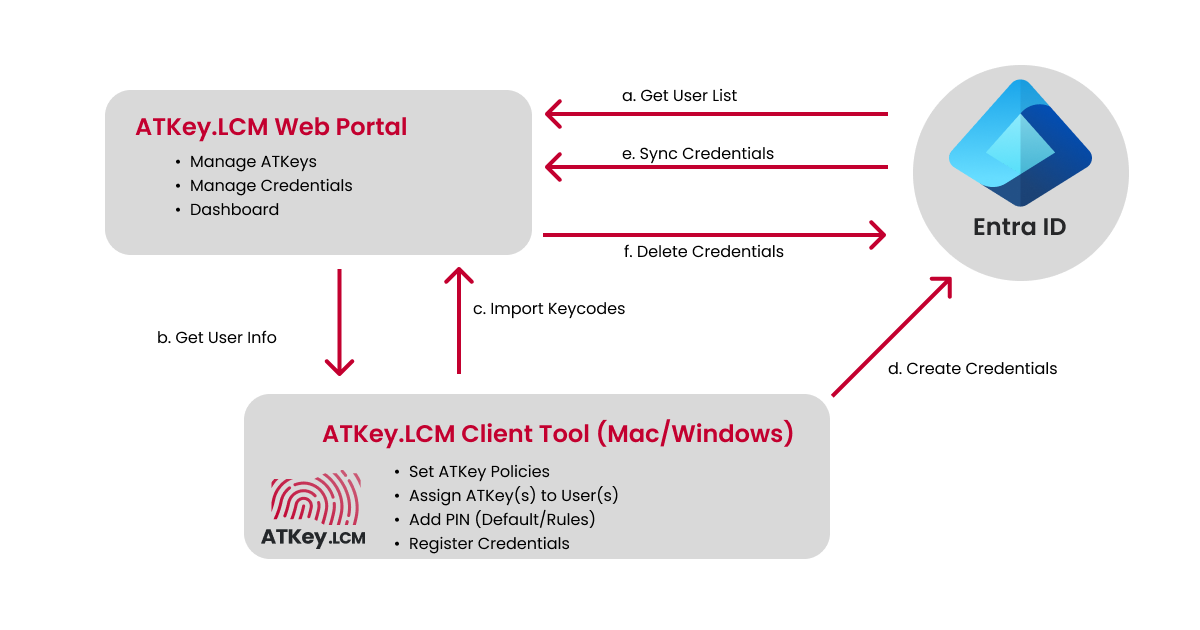
ATKey.LCM System Architecture
ATKey Serial Number
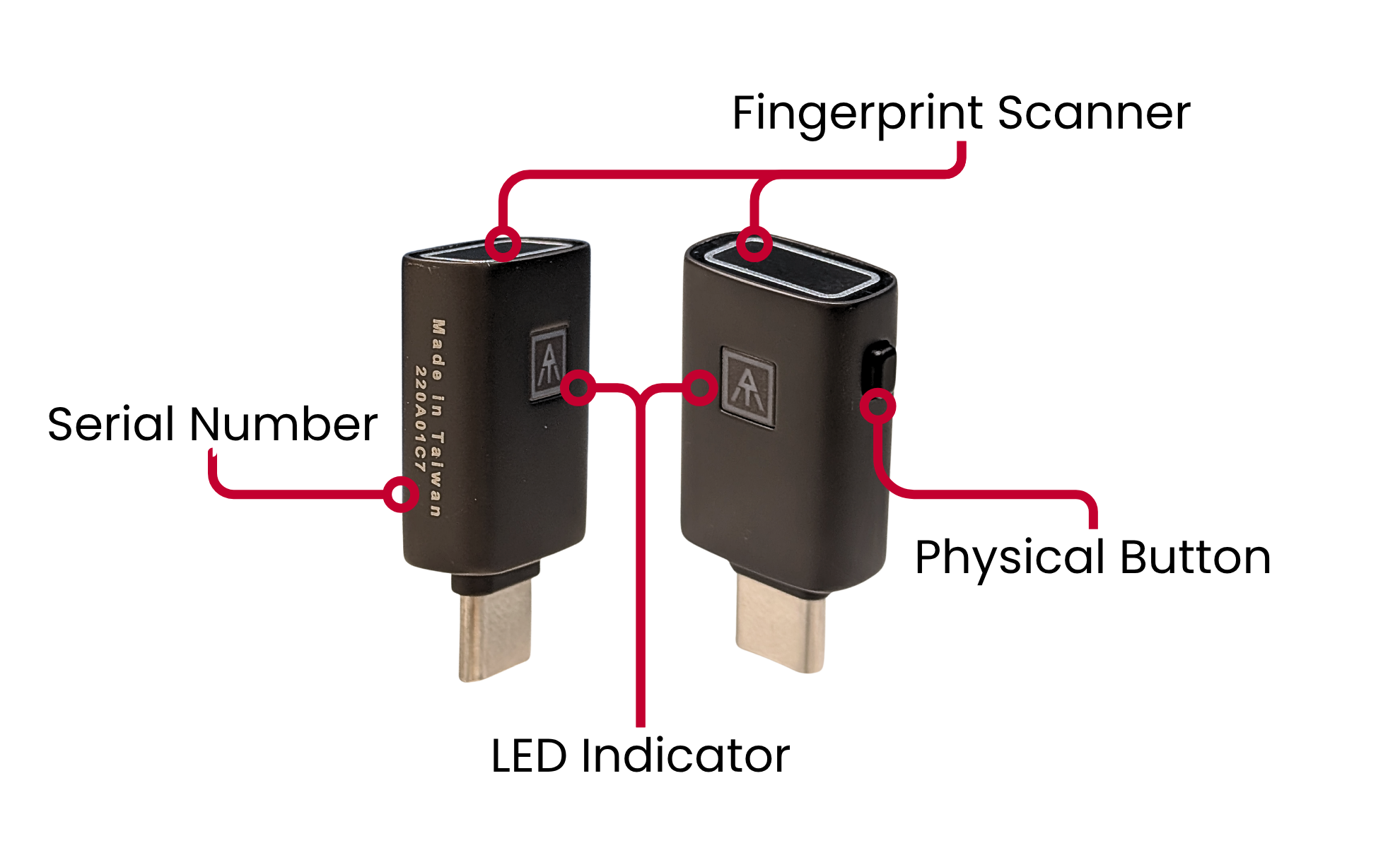
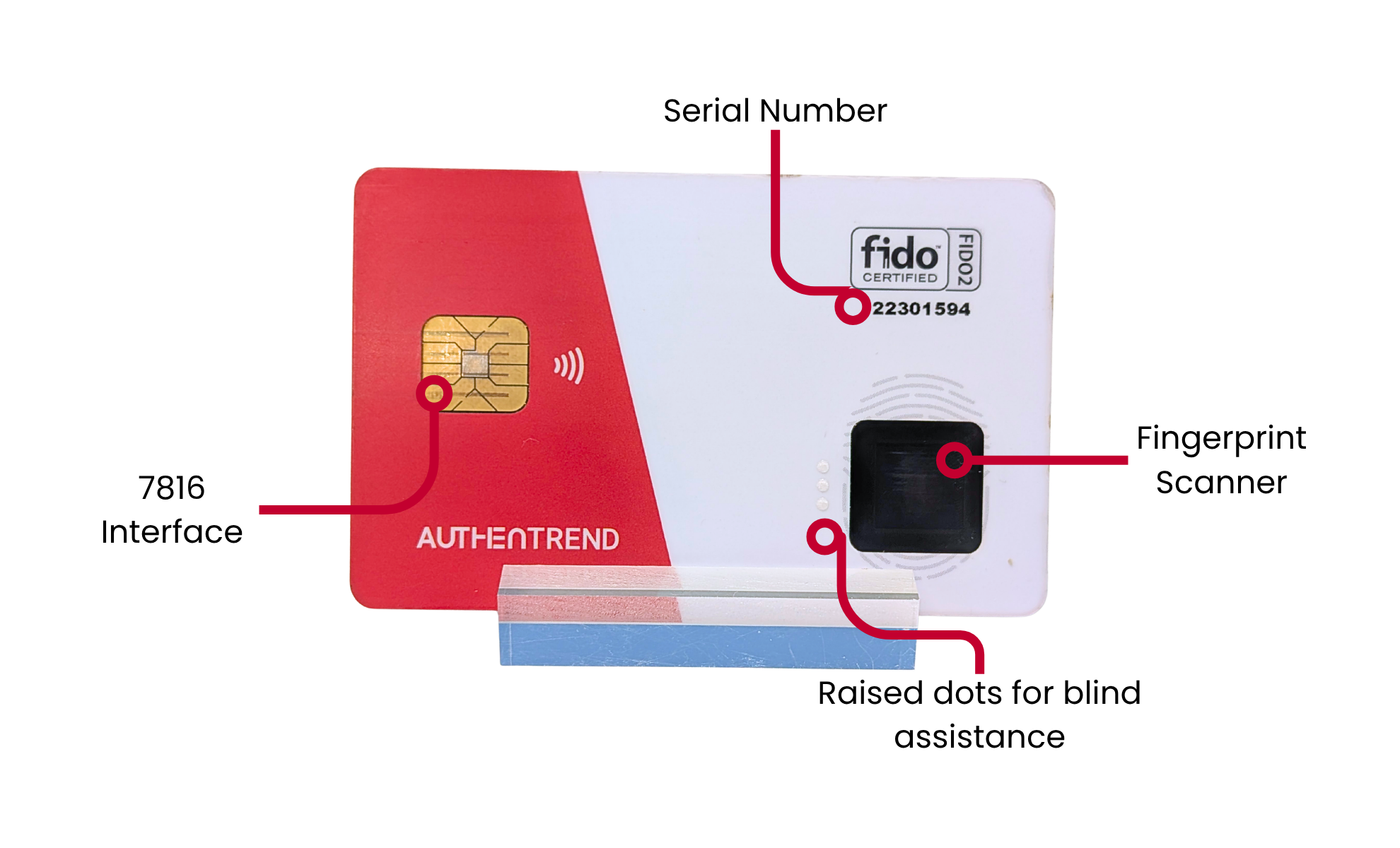
Each ATKey.Pro and ATKey.Card NFC are trackable through a hexadecimal 8 digits code, which is the serial number.
Each serial number is unique to one key. The serial number is embedded in the key firmware, as well as printed on the key surface.
Through the serial number, it can be traced to key production, features, and shipment.
In ATKey.LCM serial numbers and Entra ID user IDs are paired for improved tracking.
ATK.LCM Onboarding
Set up ATKey.LCM for your organization and connect it with Entra ID in less than 10 minutes
Register your account
Visit ATKey.LCM at (https://atkey-lifecycle.authentrend.com/) and use the referral code your partner shared with you.
Use Entra ID and a Microsoft account to login.
Entra ID Global Admin or Authentication Administrator (+ Cloud Application Administrator or Application Administrator) role required to use ATKey.LCM.
You will be prompted to provide a support email and enter any referral code you may have.
ATKey.LCM will require you login into Entra ID and to grant API permission in order to work.
About the Trial you should know:
1. Onboarding is a one-time setup. Each organization completes it once, and it starts your 60-day free trial.
2. Don't have a referral code? Contact your Solution Provider, or visit ourFree Trial Program to find one.
3. Don't have ATKeys yet? You can complete onboarding and explore the platform, but ATKey hardware is required to provision users. Our team will follow up with you about getting your first keys.
ATKey.LCM Overview
Dashboard
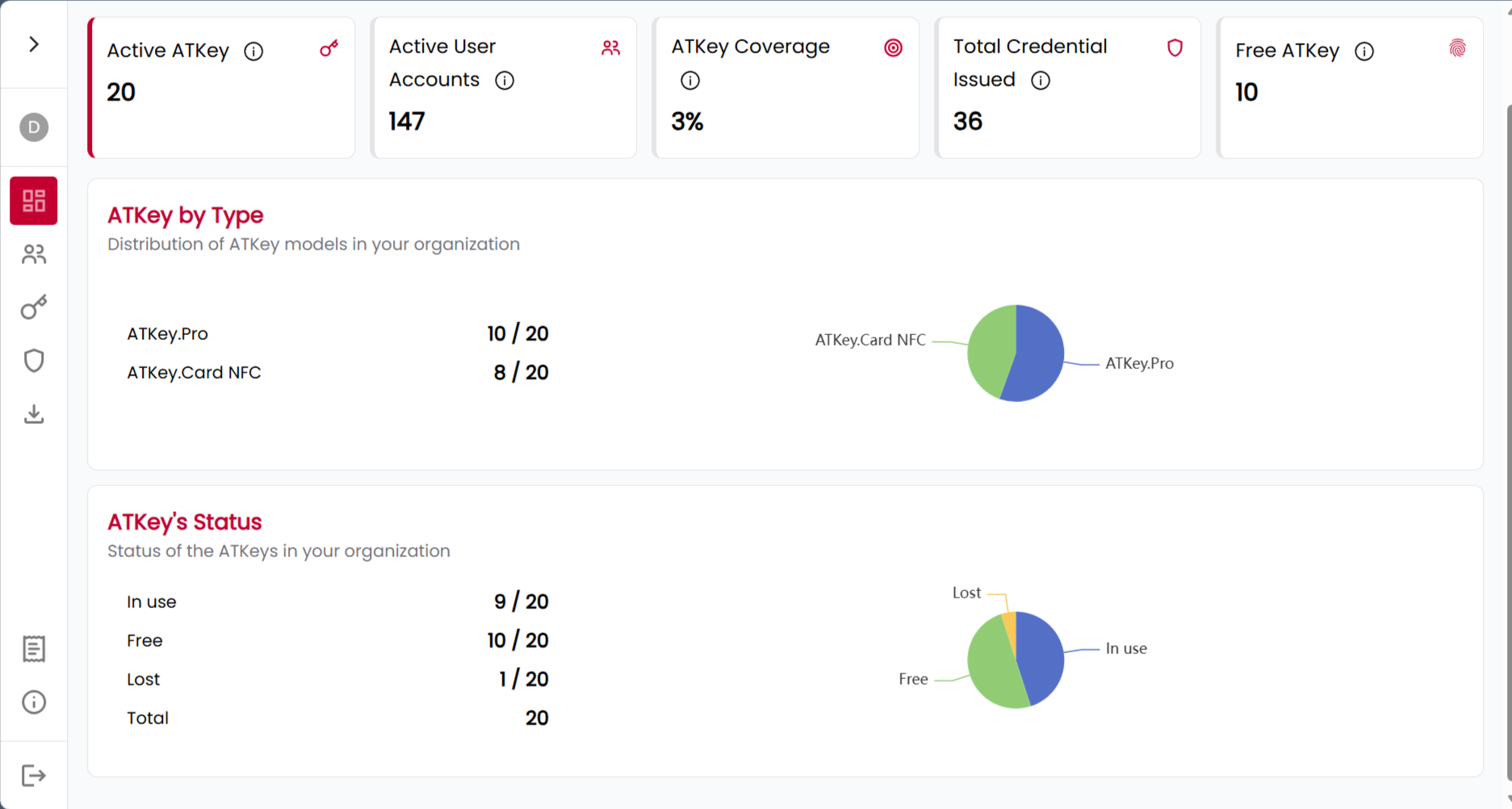
Upon login you will see the main dashboard.
Here is where you can see the deployment and usage of ATKeys at a glance.
The main metrics shown here are:
Number of active ATKeys
Number of accounts in your Entra ID organization
Number of credentials issued through ATKey.LCM
Number of free ATKeys
Status of the ATKeys registered
User List
The second tab is the full list of the accounts in you Entra ID environment.
For each account you can check to which departments they belong, what their role and which ATKeys are assigned to them.
You can leave notes for future reference.
ATKey Inventory
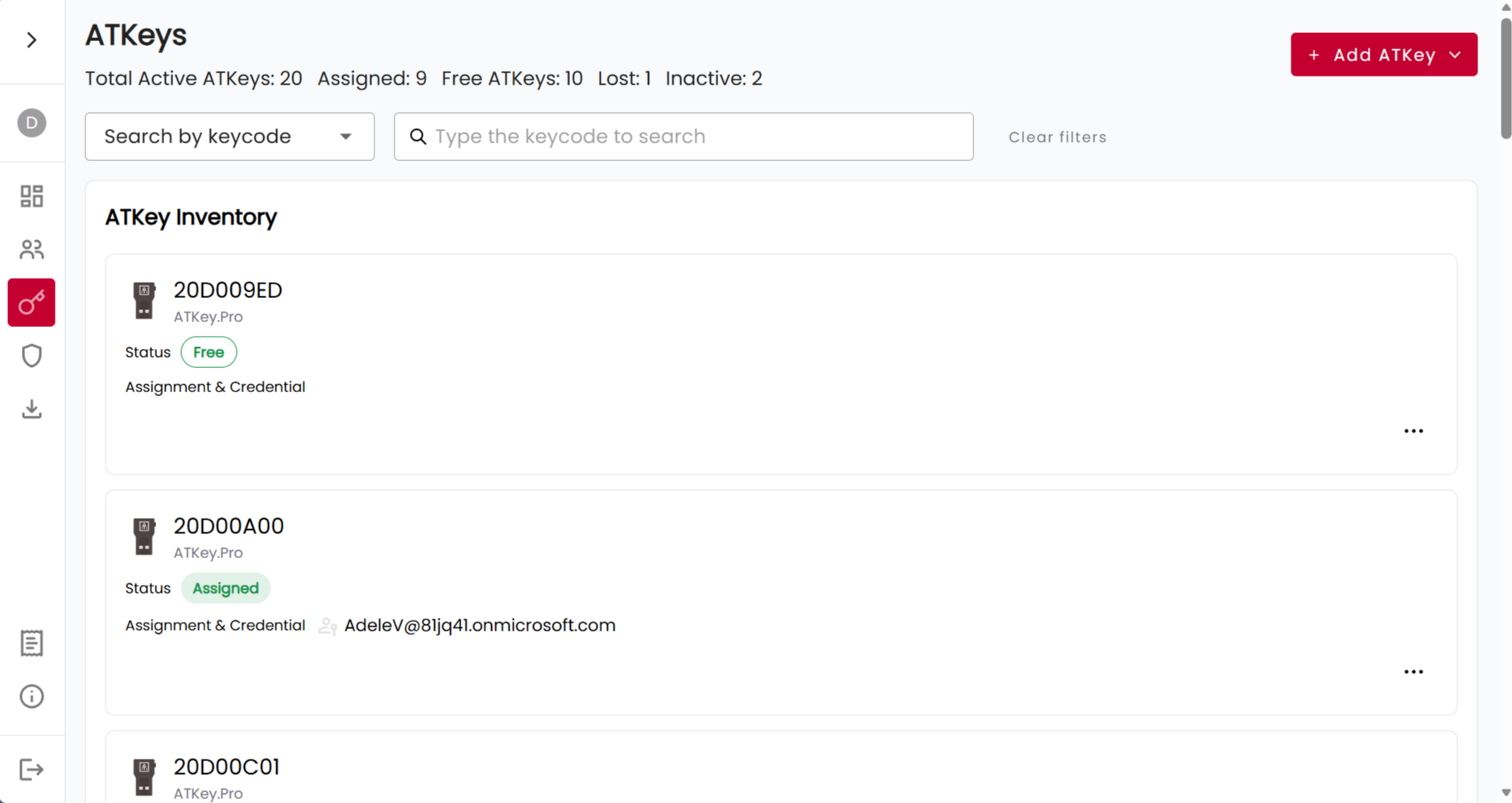
The third tab functions as your virtual ATKey inventory, all the keys registered to your organization are here.
Keys details include:
Serial number
Model
Status (free, assigned, lost)
When it was first registered
When was activated
Last use
Here you can change the status of any ATKey that has been registered with the three dots on the right of each ATKey tab.
Credentials
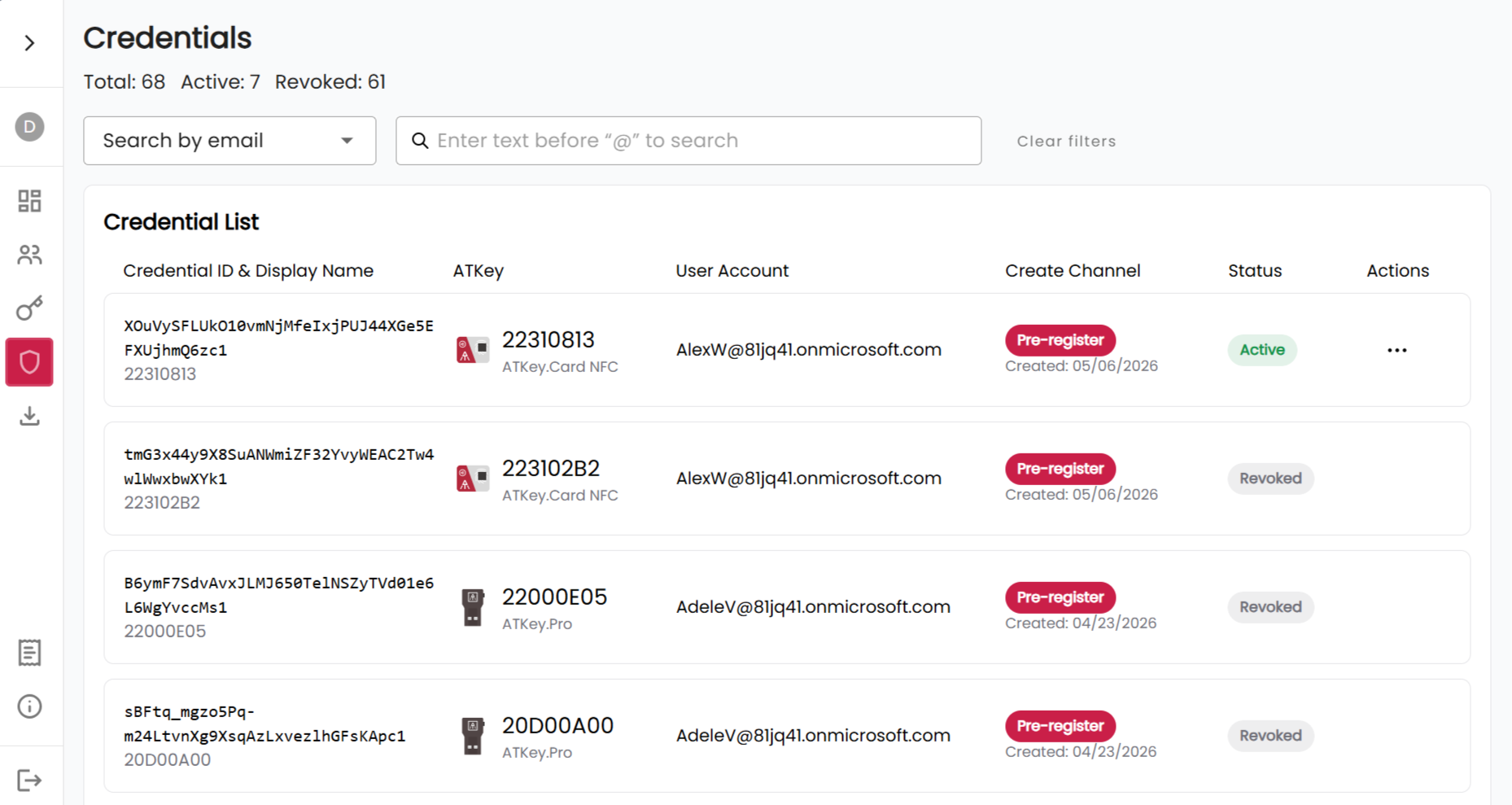
The fourth tab functions as credentials; all the keys registered for your organization are here.
Here you can review and manage the list of credentials. Revoke a credential to manage the credentials in Entra ID.
Pre-Registration Tool
Visit the download tab in the ATKey.LCM interface. Is the fifth from the top on the left side panel.
Download the Admin Credential Pre-reg Tool
Install ATKey.LCM Pre-Reg.
At launch remember to use “Run as an administrator” otherwise the tool would not work.
Due to the Microsoft API limitation:
Admin cannot assign keys to their own account.
Authentication Administrators cannot assign keys to Global Administrators (the reverse is allowed).
Pre-reg Tool Flow for Admin
Add Workflow – Define Organization Key Policy
On opening the Pre-Reg Tool, click on Add Workflow. A new pop up will appear.
Name your workflow. You can set the pin to be randomly generated or to a default one. Here you can also establish how long the PIN should be, and if the user will have to change it on the first usage.
You can also establish a fingerprint policy such as requiring the user to register one at the next use.
Save your workflow to add it to the list of workflows available.
Pre-reg ATKey to Entra ID
Pick the workflow you want to run.
The system will prompt you with three possibilities:
To pre-reg an ATKey for each user
To pre-reg multiple keys to a single account (useful to have both a main and a backup key prepared or for accounts that are shared among multiple people)
To pre-reg all the selected accounts to a single key (useful for users that need access to multiple accounts)
After choosing the modality you will need to select the users you want to register the keys to. The pre-reg tool will show you all the users in your Microsoft environment. you can pick up to 20 users for each cycle.
After the users is time to map them to the ATKeys. Make sure they are connected to the computer. To map them just order them in front of the account they need to be connected with.
Once started the pre-reg process will ask if you want to add any of the key not already registered in ATKey.LCM and will require you to touch or click each key depending on the model when requested to complete the process.
If you are pre-registering ATKey.Card NFC, you will be prompted to remove it and reconnect it with the reader when the credential assignment process begins.
Status and Flow
ATKey and Credentials
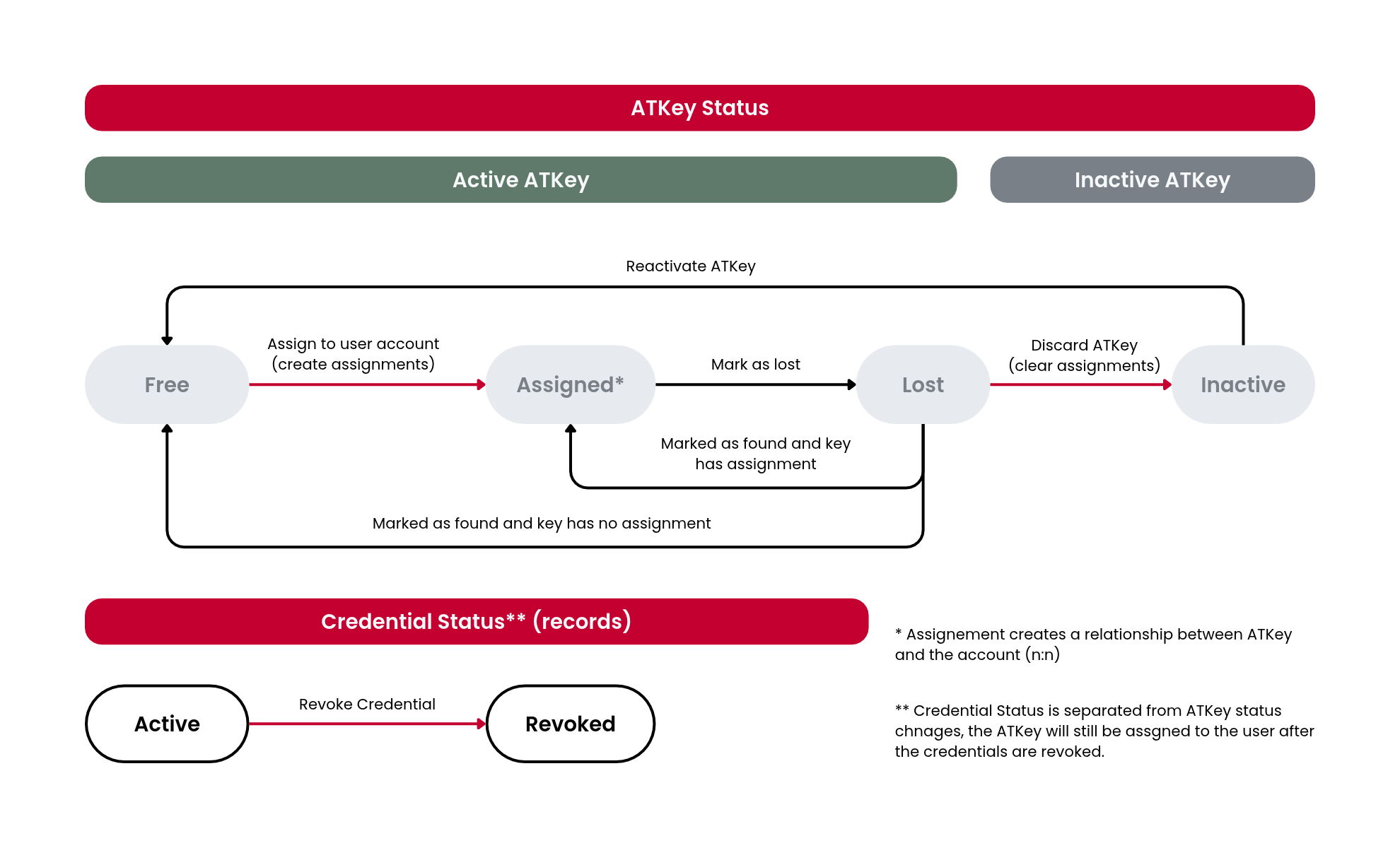
ATKey Status
| Status | Meaning | Can change to |
|---|---|---|
| Free | Active key, registered in ATKey.LCM but not assigned to any user | Assigned (assign to user account), Lost, Inactive |
| Assigned | Active key, assigned to one or more user accounts | Free (Revoke ATKey), Lost, Inactive |
| Lost | Active key reported lost by an admin | Assigned or Free (mark as found), Inactive |
| Inactive | Discarded key. Assignments are cleared | Free (reactivate ATKey) |
An assignment creates a relationship between an ATKey and an account (n:n).
Credential Status
| Status | Meaning | Can change to |
|---|---|---|
| Active | Credential is registered and usable | Revoked (revoke credential) |
| Revoked | Credential is no longer usable | — |
Credential status is separate from ATKey status. An ATKey remains assigned to its user even after its credentials are revoked
Actions
| Tab | Action | Details |
|---|---|---|
| Account Tab | Withdraw ATKey (Assigned → Free) | Available when ATKey status is Assigned |
| ATKey Tab | Mark ATKey as lost (→ Lost) |
Available when ATKey status is Free or Assigned User will be asked whether to revoke the credentials above |
| ATKey Tab | Mark ATKey as found (→ Assigned/Free) |
Available when ATKey status is Lost Status change: - If key has assignment, status return to assigned - If key has no assignment, status return to free |
| ATKey Tab | Discard ATKey (→ Inactive) |
Available when ATKey status is Free, Assigned, or Lost The credentials above will be revoked |
| ATKey Tab | Reactivated ATKey (→ Free) | Available when ATKey status is Inactive |
Trial & License
Your 60-day free trial
What counts as a licensed user
A user counts toward your license once they have been assigned an ATKey. In ATKey.LCM this count is shown as ATKey Users.
Clearing a user's ATKey assignment does not release the seat. The seat is released only when the user is removed from Entra ID and ATKey.LCM completes its next sync.
When your trial ends, upload a license key on the Subscription page to continue managing ATKeys. Contact your Solution Provider to obtain one.
The license you upload must cover at least your current ATKey Users count. If it covers fewer users, the upload will be rejected.
Activating your license
Onboarding starts a 60-day free trial with no limit on the number of users. You can sync your full Entra ID user list and provision keys across your organization during the trial.
License status affects managing keys in ATKey.LCM — adding users, assigning keys, and syncing with Entra ID. It does not affect end users signing in with the ATKeys they already have. Daily authentication continues to work normally.
End users are not affected
Need Help?
| Question about | Contact |
|---|---|
| Referral code, licenses, ordering ATKeys | Your Solution Provider |
| Product support | customer.support@authentrend.com |
| Finding a Solution Provider | Free Trial Program |