


ATKey.Login (Cloud Version) User Guide
ATKey.Login (Cloud Version) lets you login passwordless in any Windows computer with your ATKey FIDO2 security key.
N.B. This guide only covers the cloud version of ATKey.Login. If you are looking for the self hosted version of ATKey.Login you will find it here.
Important Considerations
ATKey.Login only supports ATKey hardware security keys. ATKey.Login is compatible with any kind of Windows account. It does not require an internet connection to work.
ATKey.Login must be installed on a Windows 10 build 1903 or higher.
ATKey.Login works with Remote Desktop but it require that both Host and Client PC have ATKey.Login Companion App installed. The username and password for both PCs is the same. The Host PC account needs to have higher permissions than the Client account.
Each ATKey.Login license can be used for up to 3 pairs of accounts and keys. The pair can be split on multiple devices.
Requirements
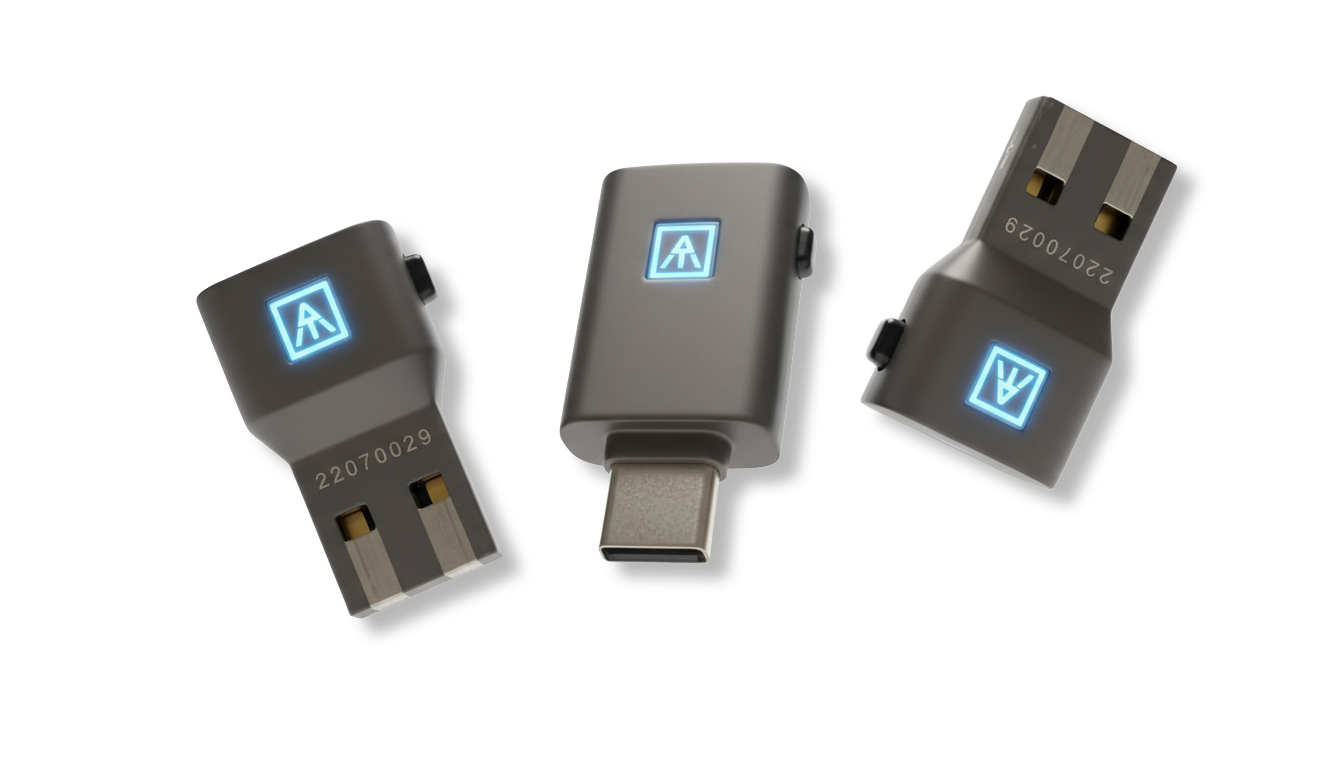
One or more ATKey (ATKey.Pro, ATKey.Card NFC, and ATKey.Badge are compatible) with fingerprint enrolled.
Need to buy an ATKey? Go here.
Don’t know how to enroll your fingerprint? Go here for ATKey.Pro and here for ATKey.Card NFC and ATKey.Badge.
Quick Setup Journey
Follow these simple steps to activate ATKey.Login

Set Up Your Account
Install & Companion your Windows account with ATKey
Passwordless Login on Your PC
Step-by-Step Guide
Here’s a detailed walkthrough to help you activate ATKey.Login
Step1:
Create ATKey.Login Account
1-1. Create an Account
Go to ATKey.Login, sign up and follow the verification process.
Click Sign Up.
Enter your email address.
Enter the verification code sent to your inbox.
Register your ATKey:
Click Save ATKey.
Microsoft will prompt a Windows Security dialog, select Security Key.
Touch or insert your key PIN to verify it.
After registration name your key for future reference.
Activate your Account
In the Overview tab click on Activate Now and insert the license code.
You can obtain a license code through the app itself, with a 7 day free trial. Or if you require a bundle of licenses contact our support team.
Step 2:
Companion your PC
Download and install the Companion App
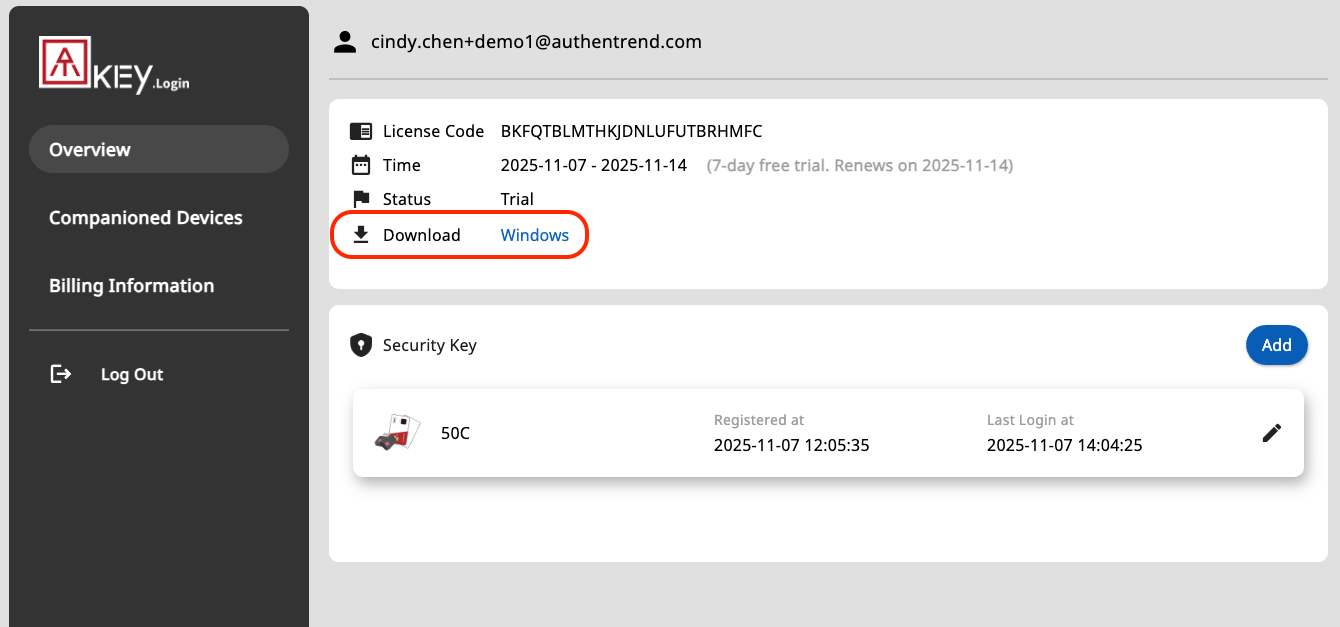
Once you activated your license you will see a Download section in the Overview tab.
Click on windows to download the ATKey.Login Companion app.
2-2. Plug in and register your ATKey
Launch the installer and follow the instructions.
When prompted plug in your ATKey and click Companion.
A Windows security pop up will appear and you will be requested to verify your key by touching it.
Once the process is completed the screen will lock and your will be required to do a first login verifying your key and your password.
Step 3:
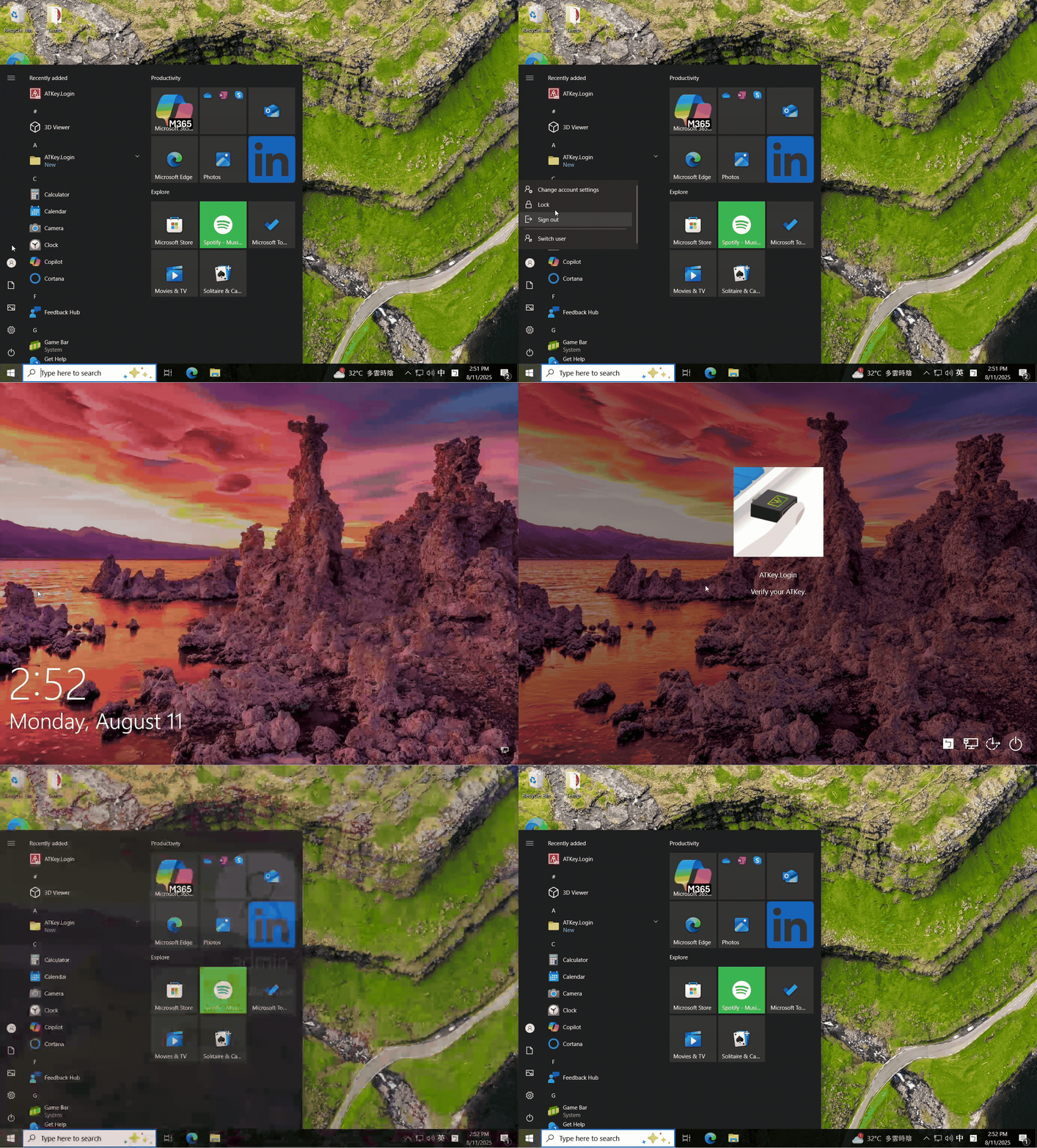
Enjoy passwordless logins online and offline.
Enjoy secure, passwordless access with ATKey
Tips for a Smooth Experience
Follow these simple steps to activate ATKey.Login
🧪 Test It
Try logging into your PC — you should be prompted to use your ATKey!
🔐 Keep Your ATKey Safe
Treat your ATKey like your house keys. Store it securely and don’t share it.
🔑 Have a Spare Key
We recommend having a backup ATKey in case one is lost — just like you would with your car or home.
FAQs?
-
Up to 3 companions (Device-Account-ATKey) can be made with a license. For example:
User who has multiple Windows PCs with the same account, can companion one ATKey for the same account on different Windows PCs
User who has multiple Windows PCs with different accounts, can companion one ATKey for each PC/account
Users who use one shared Windows PC, can companion their own ATKey for their own account on the same Windows PC
User who has multiple accounts in one Windows PC, can companion different ATKeys for different accounts in one Windows PC
-
ATKey.login is highly compatible with Windows account types, including admin, local, on-premise AD, and VM-based accounts under both online and offline environments.
-
ATKey.Login is an add-on for ATKey, and only works with ATKey so far.
-
Yes, but some regulations on account settings must be complied with:
Host PC and Client PC should both be companioned
The Username/Password of the companioned account on both PC should be the same
The permission (account type) of the host PC should be higher than “Remote Desktop Users”