

ATKey.Login User Guide (On Premise)
First Time Operations
1. First Access to ATKey.Login
During the installation process one admin account has been created for you. To access it go to the ATKey.Login URL you specified in the LicenseKey File and initiate the recovery process.
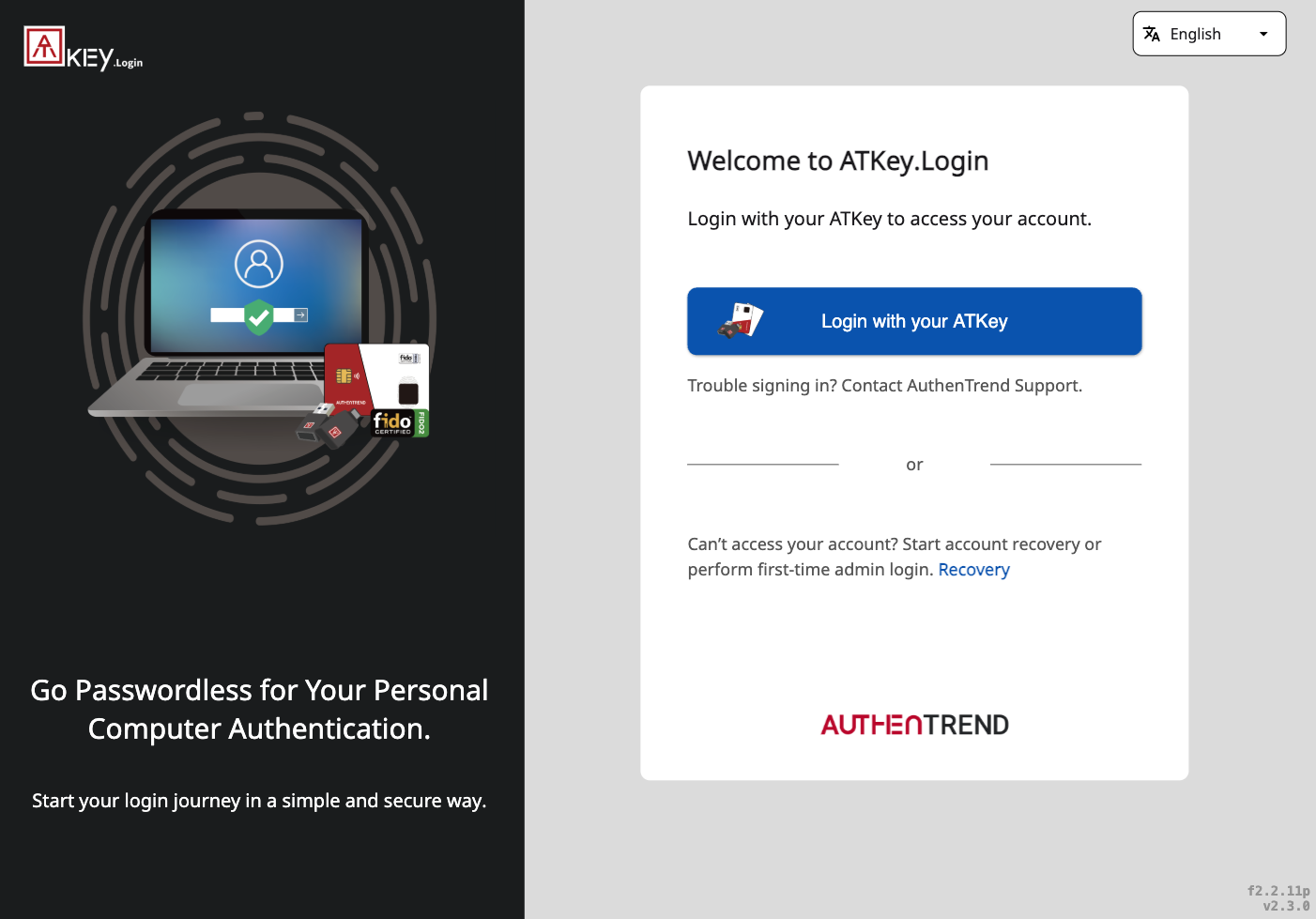
Enter the registered admin email and use the recovery verification code that was shown during the installation process.
IMPORTANT: If you did not write down your recovery verification code during the installation or you can’t find it at the moment you can recover it by
Entering the path /www/atkeylogin in the ATKey.Login server console
Run the command
sudo./read_veriCode.sh "admin email"CRITICAL: Differently from other verification codes that can be used to recover users’ accounts this is NOT a one-time code. Keep it safe.
2. Import Key List
Once you did your first login you should import your key list. Each ATKey is identified by a unique hexadecimal code printed on the key itself. Prepare a list of the keys your organization is going to use and import them.
ATKey.Login will only work with keys that are registered to it.
Go to Admin Console > Key Management > Add Security Keys
Chose Import File to add multiple keys at once, the system accepts only CSV format.
Chose New Security Key to manually register the key.
After the key list has been imported the admin can associate the keys with the AuthFi and ATKey.Login accounts.
3. First Access to AuthFi
During the installation process one admin account has been created for you. To access it go to the AuthFi URL you specified in the LicenseKey File and initiate the recovery process.
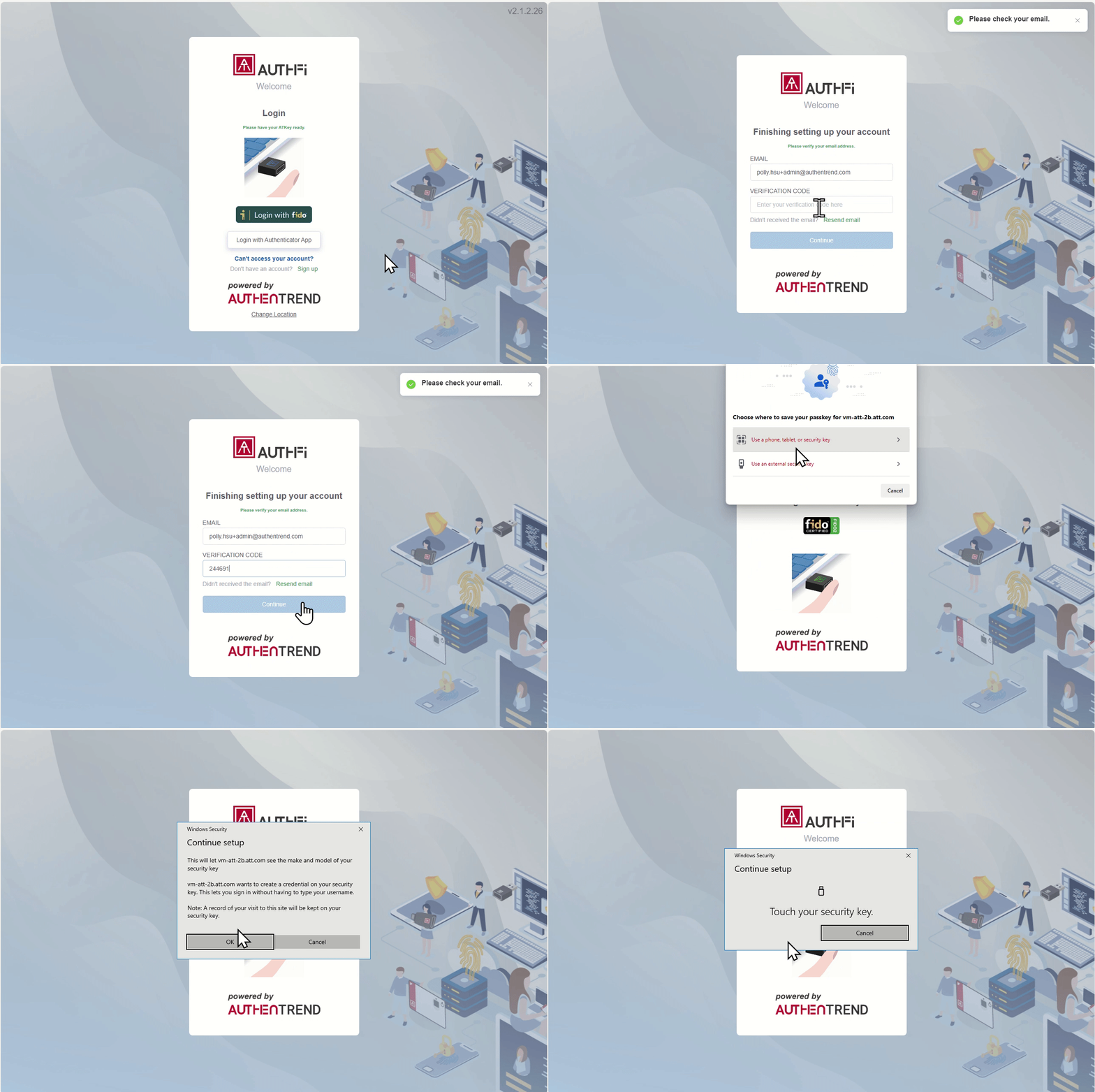
Enter the registered admin email and use the recovery verification code that was shown during the installation process.
CRITICAL: Differently from other verification codes that can be used to recover users’ accounts this is NOT a one-time code. Keep it safe.
ATKey.Login Admin Console
ATKey.Login Admin Console is the main hub to organize and manage users and keys. It allows you to import all your users through the Lightweight Directory Access Protocol (LDAP) and map them to their keys keeping track of usage and providing an easy and efficient way for accounts management and recovery.
The Admin Console can only be accessed by users’ accounts which are registered as Admins in ATKey.Login. The account registered with the installation process is an Admin account. Admin permissions can be managed through the Authorization Management tab.
ATKey.Login User Management
Import users and monitor which key they are assigned to and if their devices have the companion app installed.
Adding Users
Users need to be added to this list in order to be able to use ATKey.Login. There are three ways for you to import users:
Sync From LDAP (Recommended): ATKey Login will connect directly with your users directory (i.e. Active Directory).
To enable LDAP connection, navigate to the Integration Setting tab.
Fill the information required
Click on Sync from LDAP in the User Management tab.
Import File: allows you to import users from a .csv file. The file needs to include columns for UserEmail, Group, and Authority (Only User or Admin). Start the process to download the template CSV.
New User: Add new users manually
User Profile
Admin can search and manage users details directly from the user repository. Each user profile is composed of three tabs:
Security Keys: listing all the security keys assigned to that particular user. From here the admin can revoke any key that got lost or broken.
Companioned Devices: list all the devices connected to that user. These are the devices on which the assigned keys let them perform a passwordless login.
Events: a log of all the events performed by the user.
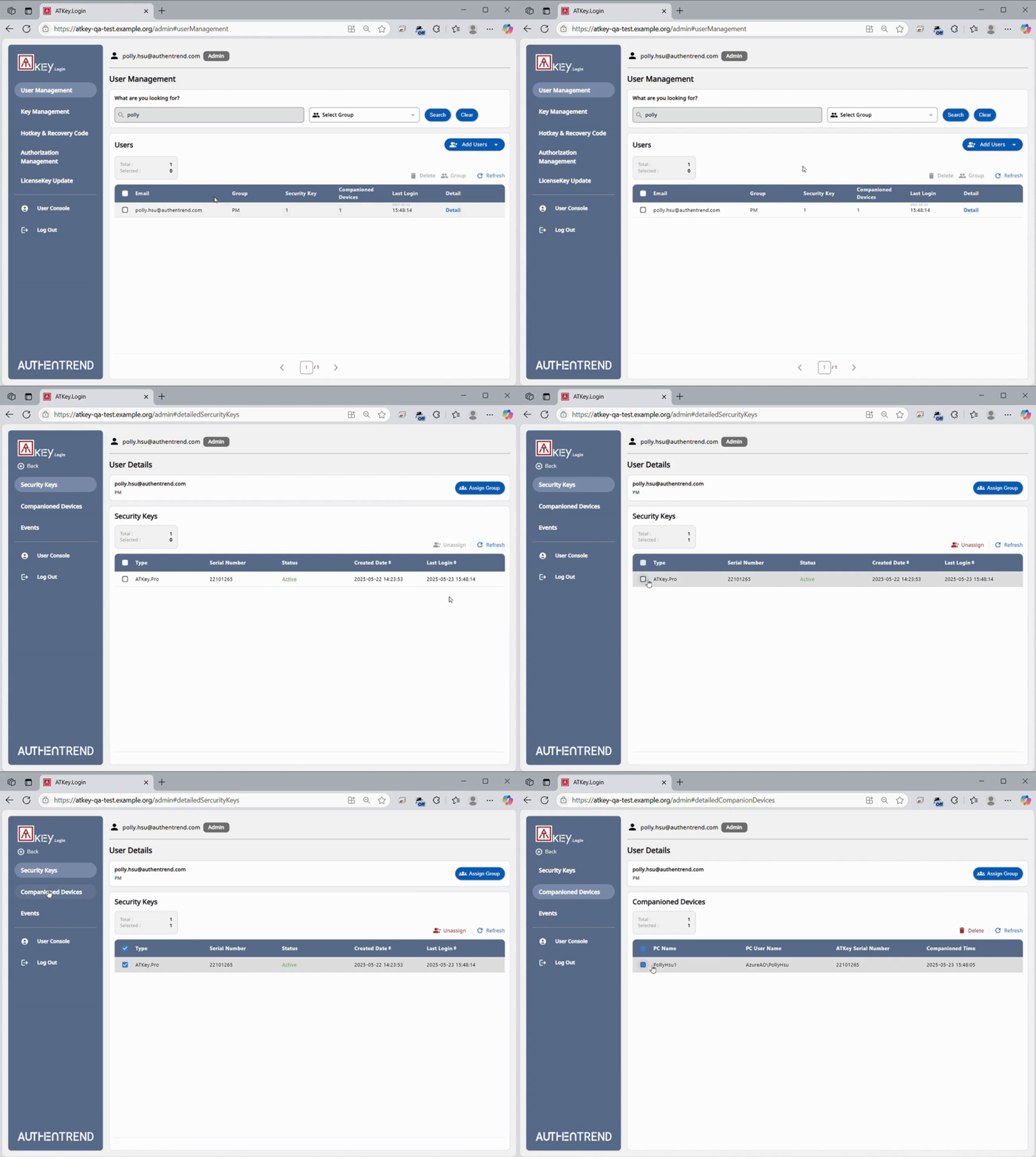
IMPORTANT: you can add, or remove, admin rights to any user registered in ATKey.Login through the Authorization Management tab.
ATKey.Login Key Management
The Key Management tab lets your import, organize, and delete the keys connected with ATKey.Login. Serial numbers need to be imported in ATKey.Login to be able to use them.
Add Security Keys
There are two ways to add keys to ATKey.Login:
Import File to add multiple keys at once, the system accepts only CSV format. Start the process to access the template.
New Security Key to manually register the key.
Manage Security Keys
Once keys are added to ATKey.Login you can use the Key Management tab to search, filter, and manage your keys directly from the platform. The system supports batch operations to efficiently handle a large key deployment.
Search your security key fleet by serial number or user email.
Filter the keys by type (ATKey.Pro, ATKey.Card NFC, etc.), or status (Active, Pending, Inactive).
Manage keys by unassigning them or deleting them from the system (unassigned keys can still be used, but they are not connected to any account).
Account Recovery
If ATKey.Login is installed on a user’s machine, password login is then disabled. This setting enhance security and prevents downgrade attacks but can represent a problem in the case the user lost their ATKey.
To obviate to the issue ATKey.Login Admin can enable login through hotkey and recovery code. Since this setting would allow any user to bypass biometric and passkey authentication, we suggest activating it only when necessary and rotate codes each time.
For the Admin
Once received the Hotkey and recovery code from the Admin
Press the hotkey combination while in the Windows lock screen
Enter the recovery code
Enter “organization domain”\”username + password” to login
For the User
To enable account recovery head to the Hotkey and Recovery Code tab in the ATKey.Login interface.
Toggle on the hotkey and recovery slider.
Establish the hotkey combination and the recovery code.
Communicate it to the user.
LicenseKey Update
In the LicenseKey Update tab, admins can check how many users or authentication(s) are currently in use. and all the information related to the LicenseKey Update file.
A new LicenseKey file can be uploaded here to substitute an expired one.
Pre-Reg Tool
The ATKey.Login Pre-Reg tool lets you pair any ATKey registered with your instance of ATKey.Login with any of the accounts in your organization.
Before using the Pre-Reg tool make sure to have imported both your key list and your user list in the ATKey.Login Admin Console.
Installation
Download the latest version of the ATKey.Login Pre-Reg Tool and install the program.

SHA 256: 36aa97b88b3ef5fa9d9dab5373fb0966bc3077ee926d65ae6679f9da8b82cbfd
Last Updated: 2026-10-07
First Login
SHA 256: d9a515ceae63ca809dbc1846283e54356999b947c52cb1fc09ddb18a8cea11b6
Last Updated: 2026-05-12
Launch the program. Remember to always Run as Admin or the functionalities won’t be available.
On the first launch you will need to enter the ATKey.Login URL of your organization.
You will be prompted to login with the browser. Clicking it will open ATKey.Login page and require you to login. Afterwards you will be redirected to the Pre-Reg Tool.
To use the tool the user login in must be an admin in ATKey.Login.
Workflows
Workflows allow you to set standard or random PIN and security rules when preparing ATKeys to be deployed. Workflows also allow you to prepare multiple ATKeys at once.
Create a Workflow
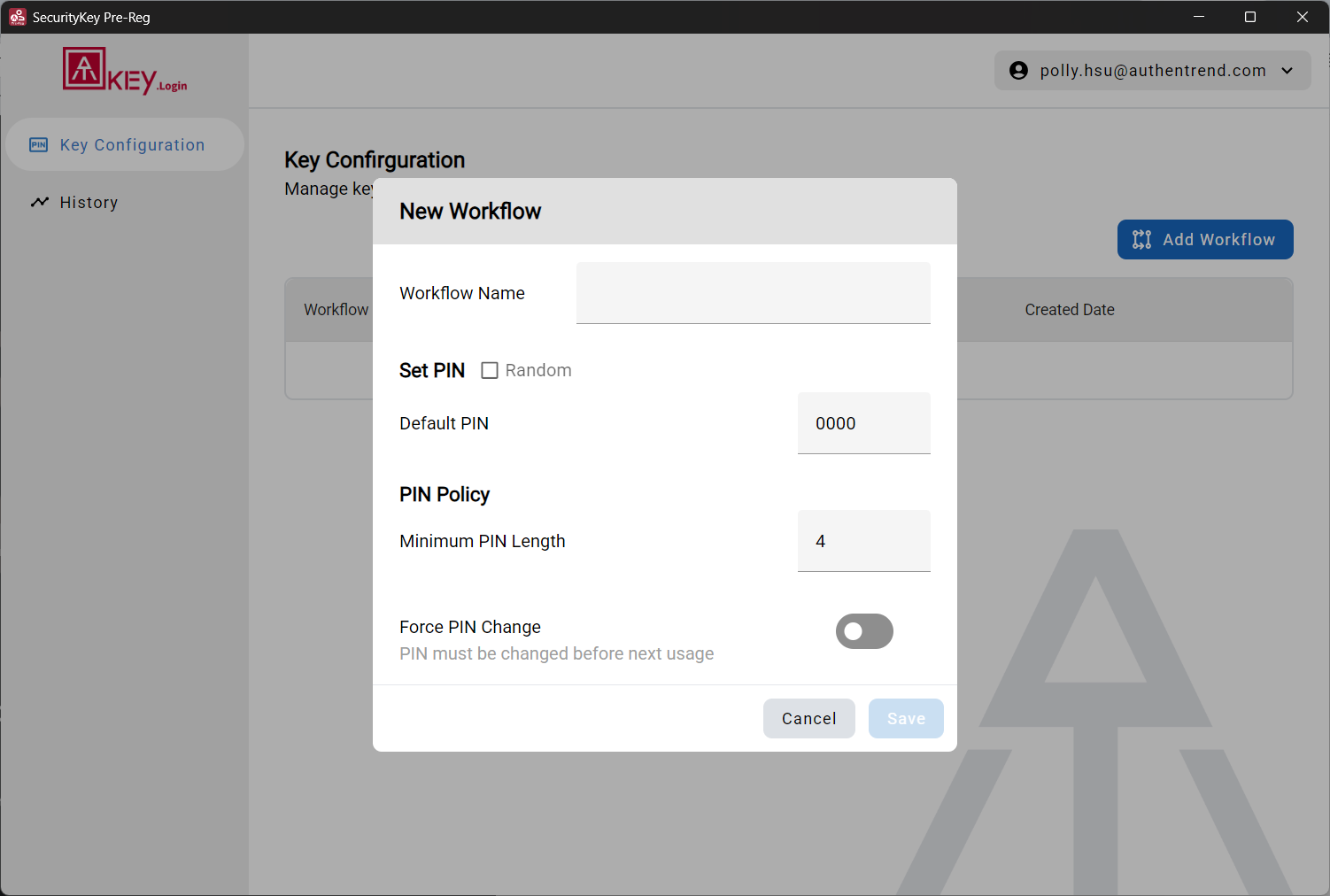
In the Key Configuration tab click on Add Workflow.
Enter a workflow name.
Set PIN.
This can be a default PIN or a randomly generate PIN.
Set PIN policy.
Minimum PIN length.
Force PIN change at first usage.
Save the workflow.
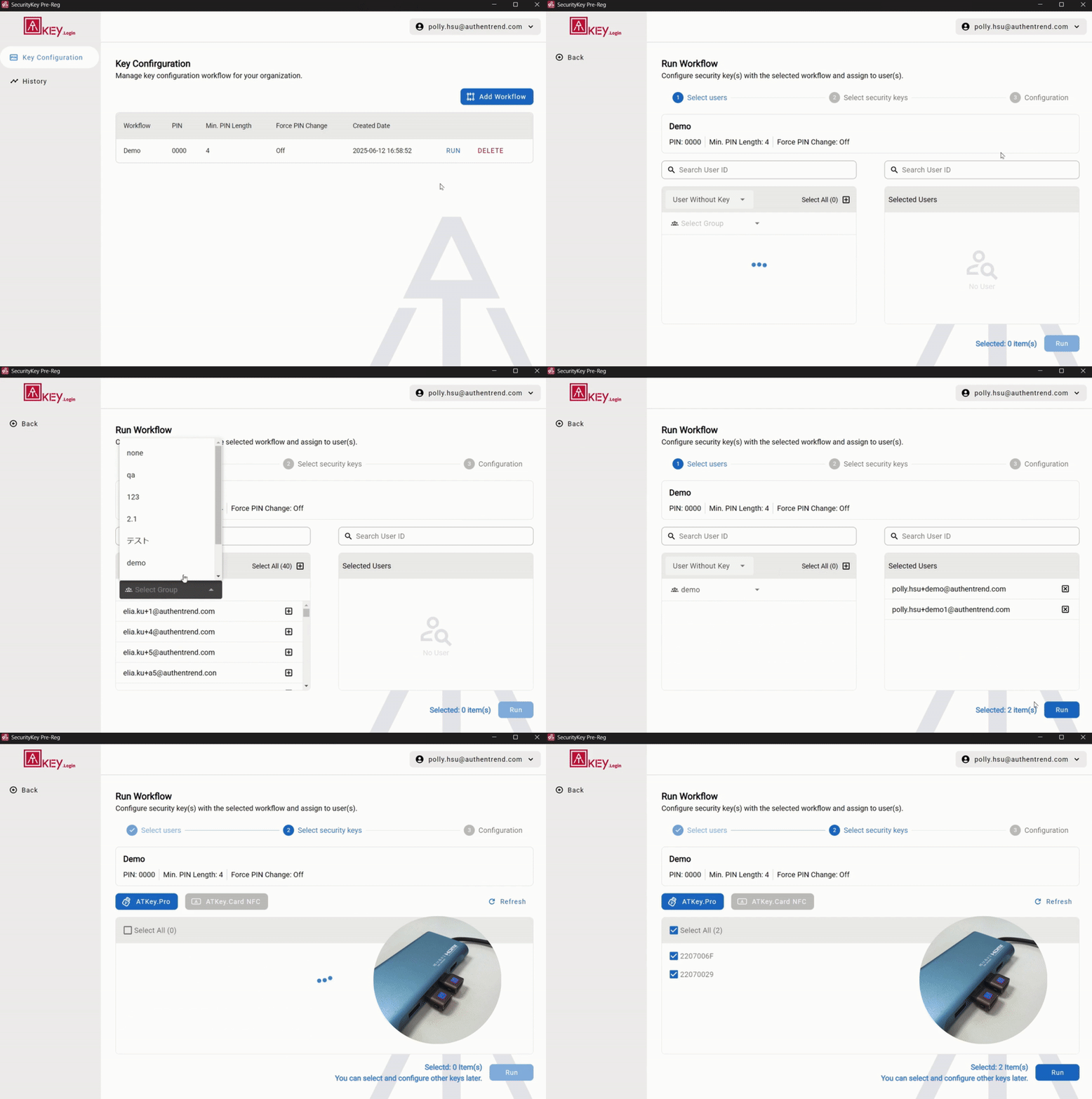
Running a Workflow
Running a workflow lets you connect ATKeys to users’ accounts and have them ready for distribution streamlining your onboarding process.
Connect the keys that need to be paired to the user with the machine running the Pre-reg tool.
‘Click “Run” on the workflow you want to run.
Select which users you want to register
Users can be filtered by “Users Without Key” or “Group”
Select the keys to pair.
Click on “Run”
Touch the key (If ATKey.Pro or ATKey.Badge) or reconnect it (ATKey.Card NFC) when prompted.
The keys are now paired.
Admins can export the workflow results and notify the user of their default PIN (important if was chosen randomly)
ATKey.Login Companion Tool for User PC
Upon receiving their ATKey users can enroll their fingerprint for enhanced protection and faster login.
In order for ATKey.Login to work the Companion Tool needs to be installed on the user device.
IMPORTANT
The Companion Tool supports Windows 10 (build 1903 and later), Windows 11, and is compatible with x64, x86, and Arm64 architectures.
Each account can be connected to up to 10 ATKey - PC pairs.
If the Companion Tool shows “Failed to connect to server” message add the companion tool to the firewall whitelist, or contact your IT about it.
Install ATKey.Login Companion Tool and Companion the User PC
Download and install ATKey.Login Companion Tool latest version:
SHA256:4ba00edd954efb31f322cc256193b78955eb56334451c11a2015c3cc0169ec5b
Last Updated: 2026-10-14
IMPORTANT: You will be required to enter the ATKey.Login URL without “https://”.
Passwordless Login Setup
Launch ATKey.Login Companion Tool.
Follow the instructions.
Plug in your ATKey when prompted.
Click on “Companion”.
Touch your ATKey for verification.
Now you can lock the PC to perform a login.
To complete the first login will be required to enter your password.
From now on a simple touch and you will be logged in.
Login to the User Console
Enter the ATKey.Login in your browser to reach the portal.
Click “Login with your ATKey”.
Select Security Key on the WebAuthn dialog.
Touch your ATKey to login.
In the ATKey.Login non admin users can check the ATKeys and devices connected to their account.
Login in a Remote Desktop
There are some requirements for using ATKey.Login on remote desktop:
Both Host PC and Client PC should be companioned with ATKey.Login.
The Username / Password of the companioned accounts on Host PC and Client PC should be the same.
The account type (permission) of Host PC should be above “Remote Desktop Users”