

ATKey.Card NFC Minidriver — Standard User Deployment via AD GPO
By default, updating to the ATKey Smart Card Minidriver through Device Manager requires an administrator password on every machine — which doesn't scale across an organization.
This guide sets up Group Policy so standard (non-admin) users can install the driver and use fingerprint verification automatically, with a one-time setup by IT.
Prerequisites
Administrator access to Active Directory and the Group Policy Management Console (GPMC).
Target computers grouped into a dedicated Active Directory Organizational Unit (OU), so the policy can be scoped to just those machines.
Step 1: Prepare the Minidriver and Folder Path
Download the ATKey Smart Card Minidriver and extract it.
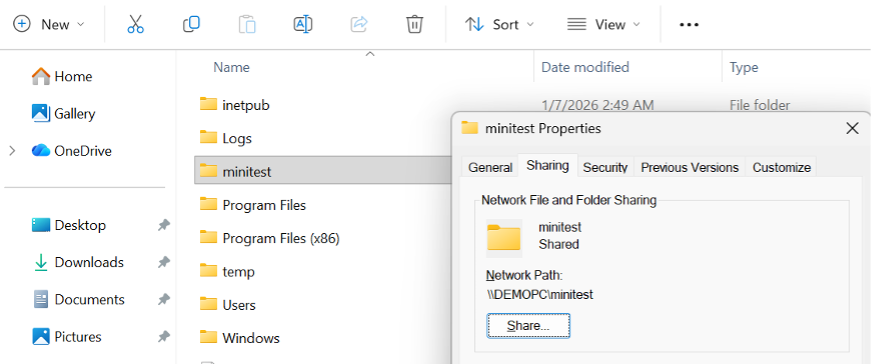
Create a folder on a server reachable by target computers, e.g. C:\minitest, and grant the permissions = Everyone: Read.
Copy the extracted package into it and note the network path, e.g. \\<YourServer>\minitest.
Open “atkmd.inf” (setup information of minidriver, you can found it in extracted folder) and get the ClassGuid: {990A2BD7-E738-46c7-B26F-1CF8FB9F1391}
Step 2: Create an OU (Organizational Unit)
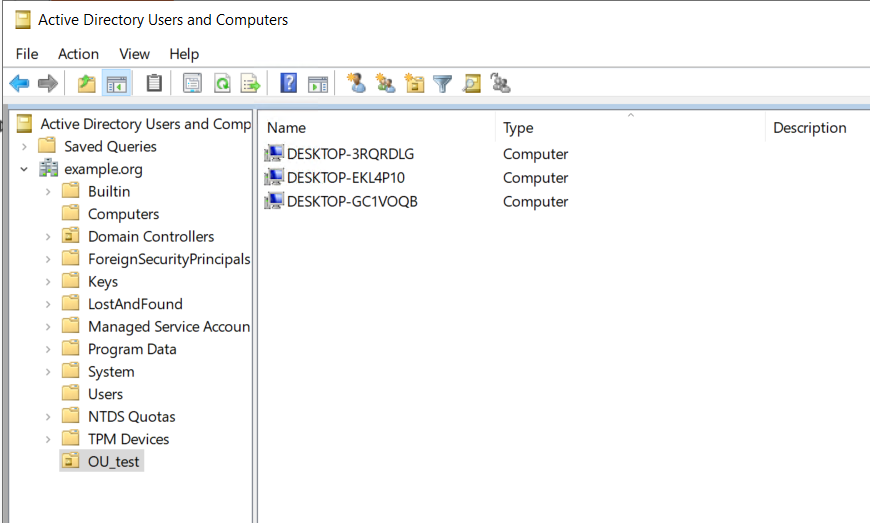
In Active Directory Users and Computers, create a new Organizational Unit (OU) to scope this policy.
Move the target computers into this OU or choose the existing OU list.
Step 3: Edit GPO: Configure the DevicePath Registry Setting
Run gpmc.msc → right-click the OU created in step 2 → Create a GPO in this domain, and Link it here.
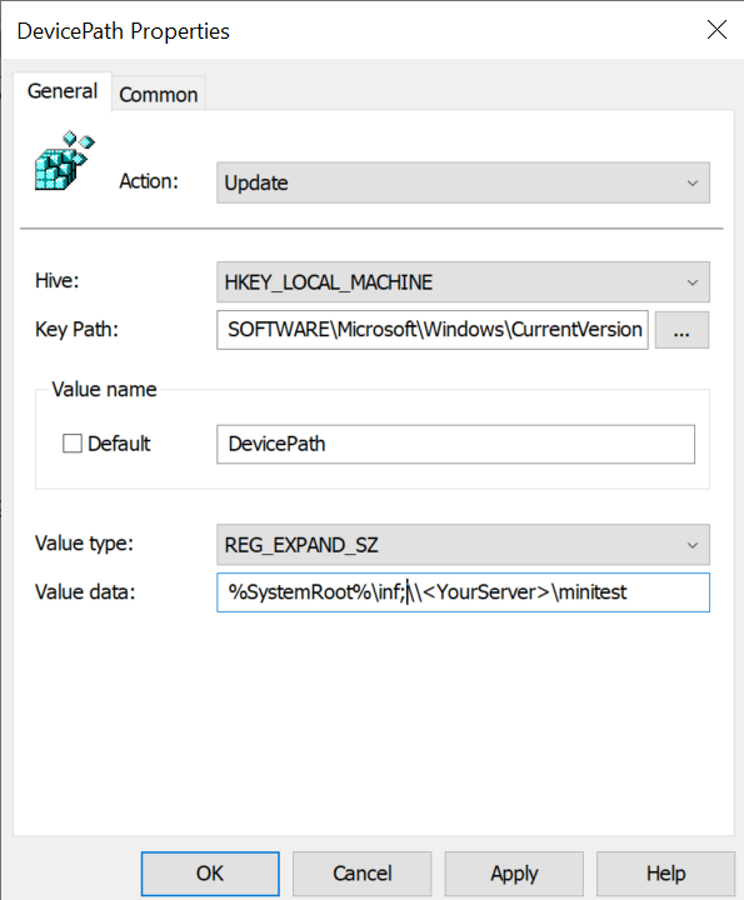
Right click the GPO to “Edit” → Select “Computer Configuration” → Preferences → Windows Settings → Registry → right-click → New Registry Item.
Set the path to: HKEY_LOCAL_MACHINE\SOFTWARE\Microsoft\Windows\CurrentVersion
Find DevicePath and append the shared folder path: %SystemRoot%\inf;\\<YourServer>\minitest
—————————————————————————————————————————————————
Step 4: Whitelist the Driver Class (Exempts Admin Requirement)
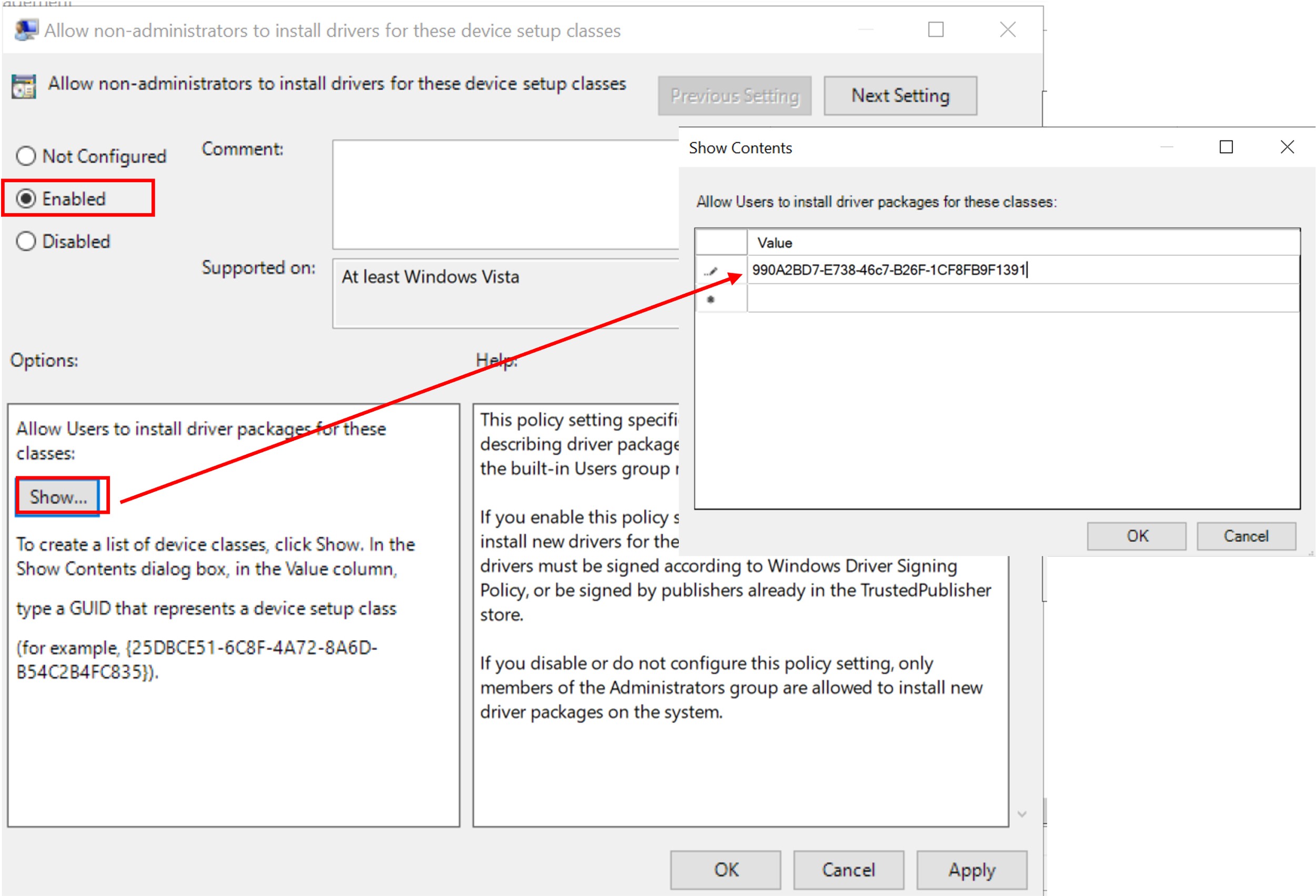
Right click the GPO to “Edit” → Select “Computer Configuration → Policies → Add a Administrative Templates → System → Driver Installation
Open Allow non-administrators to install drivers for these device setup classes → Enabled → paste the “ClassGuid” from Step 1.
Step 5: Standard user Side: Sign In as Standard User and apply the rules
Run cmd “gpupdate/force” , to apply the new policy.
Restart the computer
Reconnect the reader and insert the card — the driver updates automatically (a second tap may be needed).
NOTES:
Do not update the driver manually through Device Manager — this will be blocked by UAC
Make sure the PC is in the OU → force update the policy → reboot → re-connect reader/630 (a second tap may be needed)
—————————————————————————————————————————————————
—————————————————————————————————————————————————
—————————————————————————————————————————————————
