

ATKey.Pass User Guide
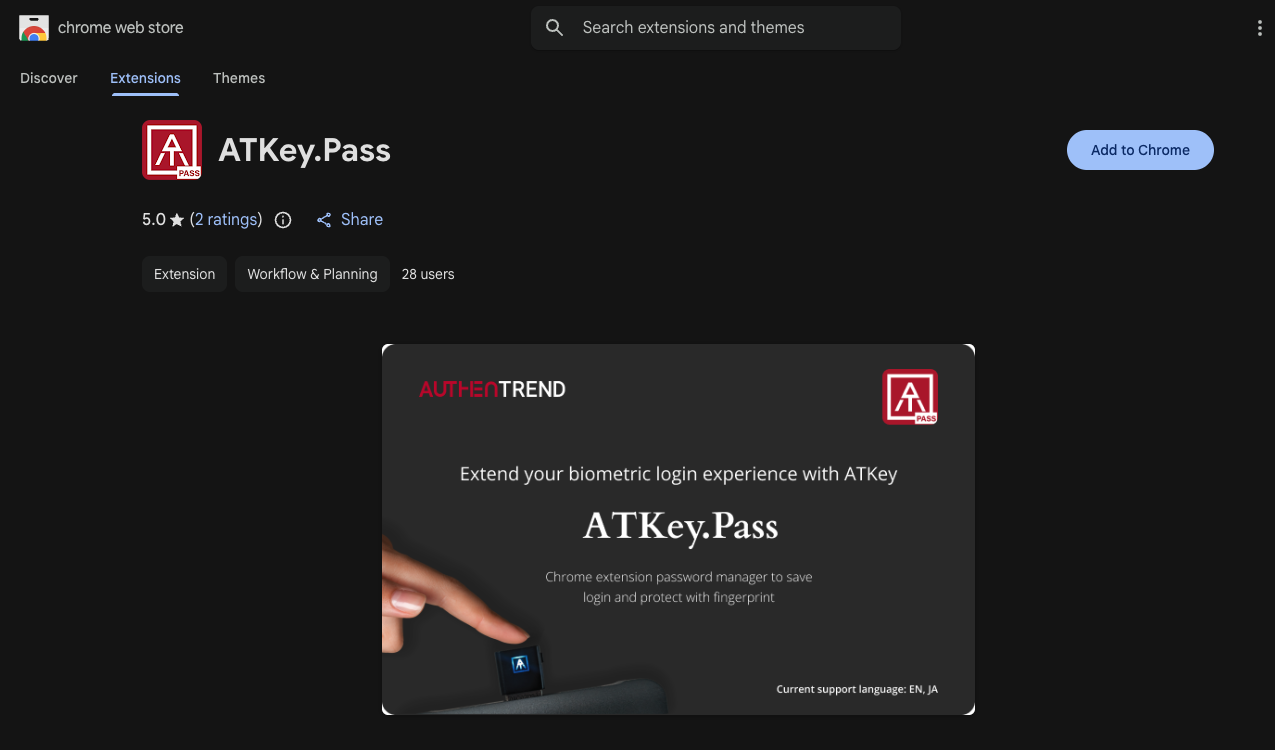
ATKey.Pass is a Chrome extension that boosts your security by directly saving non-FIDO credentials in your ATKey.Pro.
Once the credentials are saved into ATKey.pass you will be able to use them exactly as you would do for passkeys: touch your ATKey.Pro when prompted to perform a fast and secure login.
current version: v0.0.17
last update: 2024-10-8


Setup
Bind your ATKey.Pro with ATKey.Pass
Visit the Chrome Web Store to install the extension
Then click the puzzle icon (🧩) on the toolbar and pin ATKey.Pass for quick access.
Click the ATKey.Pass icon to open it
Click "Get Started" then "Bind ATKey"
Select your ATKey from the device list
You will be prompted to bio-touch the key to complete binding.
Autosave While Browsing
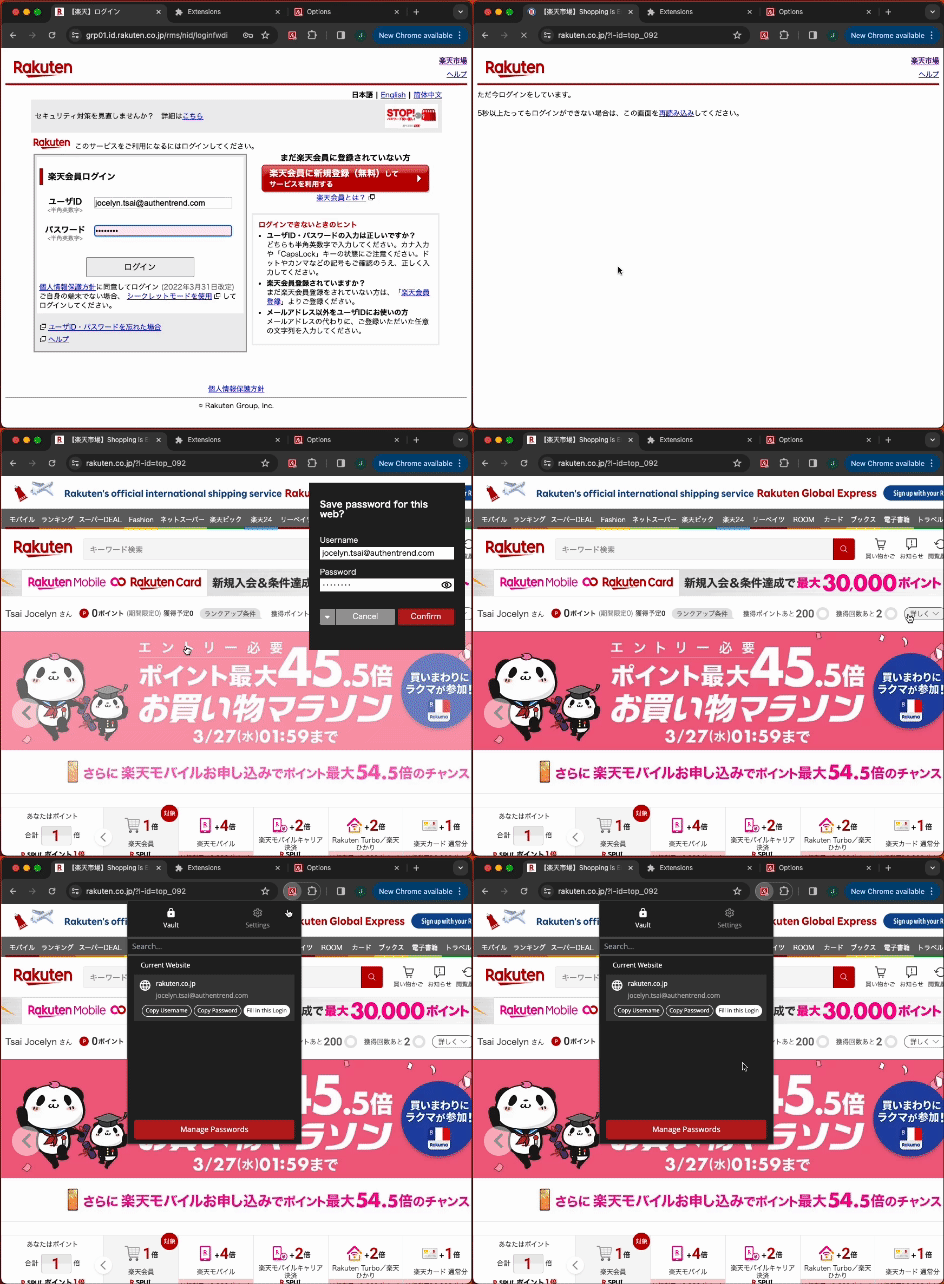
The auto-save function will be triggered when detecting a login on the page. Just confirm the extension request to save the credentials, and they will be encrypted on your ATKey.
Current version ATKey.Pass supports English and Japanese websites. For websites in other languages, the auto save/fill functions may fail, but user can still use it by adding logins manually
Manual saving process
Click on the extension icon.
Click on Manage Passwords.
In the newly opened tab click on ”+” in the bottom right corner.
Enter
Website URL
Username
Password
Click “Confirm” to save, and you are ready to login.
Passwordless Browsing with Your ATKey.Pro
When attempting to login in a website for which you saved your credentials autofill will be triggered and you will be prompted to touch your ATKey for verification. On successful verification your password will be filled automatically.
If the autofill is not triggered, you can open the extension and select the credentials to copy and paste in the input field. Biometric verification is required to access the password.